TargetWoman - Information Portal for Women
TargetWoman - Portal for Woman

2007 March | Women Blog

Women Blog - Behind the scene information about running a leading women portal - from setting up the server to maximizing the visibility amongst the discerning decision making women.
 

Firewall Setting up Part II

Filed under: Managing Servers — admin @ 7:11 am

Just as there are differences in the Operating Systems, there are differences in software firewalls and the way they are implemented.

Basic Firewall Rules: To start with, you deny all inbound traffic unless explicitly allowed and specifically under authorized open ports. It is a good idea to log all denied traffic and the log files checked periodically for any signs of determined effort to bypass your security. Log files serve no useful purpose unless reviewed periodically.

Some commonly used Terms:

NAT - Network Address Translation - This is used to send traffic addressed to outside IP from the local internal network and back. For example if an internal computer with the IP address of 192.168.0.5 browses the Net and sends the request to the server of Targetwoman, the NAT enabled system routes the request to the targetwoman server as if the request emanated from the external IP of our Network and collects the sent traffic from the targetwoman server and returns it to the right machine - 192.168.0.5 - even if there are dozens of machines in the local network.

Packet Filter - The firewall reads each data packet for filtering based on a set of Firewall rules.

DMZ - De Militarized Zone - Has nothing to do with the Army except for the military parlance. A local machine is deliberately set to access the Net for some specific or all ports. For example, if a webserver is running in a local server, it would be prudent to avoid the latency and added burden of monitoring the Web server traffic - in some cases.

Reject/Drop Distinction : If a packet is rejected by the Firewall, it returns “connection refused” error to users who attempt to connect. On the other hand, if a packet is dropped, the Firewall doesn’t send any error message. It may be wise to drop packets to avoid giving a malicious user any clue.

With the preamble as above, we will see how a simple Firewall can be setup using Netfilter and Firestarter.

Depending upon your distro of the Linux, you should have downloaded the RPM package or the source tarball. Goto a terminal and type su ( You must be root to install this ) and proceed as follows:

rpm -Uvh firestarter*rpm

Which should install Firestarter if you have no unresolved dependencies.

If you have downloaded the source file, you will need to do the following:

tar -xvzf firestarter*tar.gz
cd firestarter
./configure

With that out of the way, you can start the firestarter by going to RedHat - > System Tools - > More System Tools - > Firestarter Firewall Tool ( if you are running RedHat 9 )

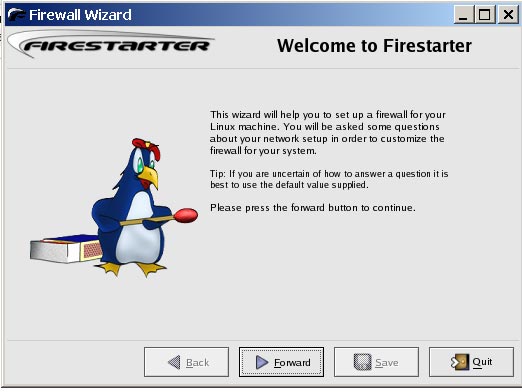
You will be presented with what looks like the image given here:Firestarter Firewall
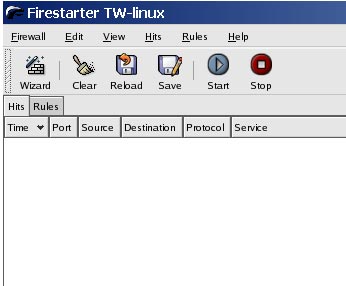
If you are impatient, head for the Wizard and it will set up a basic Firewall using default set of rules, which you can change any time later.

When it starts Firestarter sets a restrictive policy which you can modify in the preferences section. You will have to go to Edit - > Preferences to access this section.

Firewall Setting up

Under General - select Start Firewall on program startup. Under Services, enable only the services you need :

From the Net ( public access) you can provide access to any of the services listed here. SSH may be the only thing you may need to give access if people are required to access the Linux box from outside. Enable as required.

You can enable NAT (Network Address Translation) from the preferences section. Set the internal network device to point to your actual device from the drop down menu. If you are in doubt, check by typing at the terminal:
ifconfig

If you leave the Autodetect internal IP range, it will select the private class C - 192.168.0.0/24.

Select the external device as appropriate and you are done.

Congratulations if you had followed through to this point. You have a firewall running ….
Setting up a Firewall

Filed under: Managing Servers — admin @ 6:47 am

Sometime back we have covered the basic installation of a Wireless Router for networking a few computers. This time we will explore the actual setting up of a simple but effective Firewall and Internet Connection Sharing for a number of computers.
Linux Firewall

Windows Internet Connection Sharing (ICS) :
If you want to connect one computer which has access to the Internet to other computers in a local network, sharing the internet connection, you need an extra Network Interface Card (NIC) and you need to enable ICS in your primary computer. This would automatically set the local network card IP address to 192.168.0.1 and allow you to share the internet connection for all machines in the range 192.168.0.2 to 192.168.0.255 .

If your network address is not compatible with this range, or if you have Virtual Private Networking (VPN) then this option is not suitable. You will be better off with a dedicated Hardware Router or what we propose here: - Linux Firewall and Router. In fact you will find hundreds if not in thousands of pages of content about Linux firewalls and software routers running from a modestly equipped box.

Most hardware firewalls and routers come equipped with standard protection against Denial of Service (DoS) attacks and offer network reliability through Stateful Packet Inspection (SPI). Still a well designed software firewall adds the extra feature of scalability and flexibility unmatched by the hardware equivalents.

Besides extended logging allows one to enhanced monitoring for attacks. Intrusion detection is easier with this.

It must be said in bold that a firewall is the first step in your Network security. It is not a complete solution to your Network security. It does not work in isolation. You must have a complete comprehensive security policy involving effective monitoring and intrusion detection.

Simply put, a firewall examines the incoming packets and outgoing packets on specific open ports, and applies a set of pre-defined rules to determine whether an individual packet should be permitted. These rules can be based on allowable originating and destination hosts, ports, packet header information, or any combination of these factors.

Linux, as always comes with many security features in-built including a Firewall. Ipchains with a set of configuration files in Iptables is standard for most distros of Linux. Netfilter offers a set of loadable kernel modules that extends the firewalling capabilities of Linux to allow session-based packet examination.
Linux Kernel with the added features of firewalling through Netfilter has made network security easy to manage.

We will start with Firestarter - a GUI tool to control Netfilter from GNOME. It is simplicity itself. It says in its cute help page : “An all-in-one Linux firewall utility for GNOME”.

Get Firestarter from here: http://www.fs-security.com/

Its features include:

    • Easy to use graphical interface
    • Has a Wizard mode to get up and running in a few seconds
    • Allows Internet Connection Sharing
    • Option to whitelist and blacklist traffic
    • Set up a Dynamic Host Configuration Protocol (DHCP) for the local network ( this is not built-in but uses the system’s dhcpd)
    • Has an advanced kernel tuning Feature
    • Supports Linux Kernels 2.4 and 2.6
    • Ability to hook up user defined scripts or rule sets before or after firewall activation
    • View active network connections, including any traffic routed through the firewall

We will come back with the installation and setting up in the second part.


© Copyright 2004-2010 Targetwoman All rights reserved.
All comments are moderated and require approval by the webmaster.

» 2007 » March Targetwoman Women Blog | Targetwoman Women Portal | Women Health Articles | Women Directory


TargetWoman - Informative Portal for Women